Key Highlights:
- A phone can feel slower or drain more battery after an update while Android finishes background optimisation and other setup tasks.
- Heat, limited free storage, and a misbehaving app can make the slowdown last longer than expected.
- Give the phone time to settle, check battery and storage usage, and avoid factory resets or aggressive cleaner apps as your first response.
You install a software update expecting a smoother phone, a few new features, and maybe some security improvements. Instead, the first thing you notice is a laggy home screen, apps taking longer to open, and a battery percentage that seems to fall faster than usual. It is a frustrating experience, especially when the update was supposed to make your phone faster and more reliable.
But a phone feeling slower immediately after an update does not automatically mean the update has damaged its performance. The operating system may still be completing background tasks, apps may need to adjust to the new software, or an existing storage and battery problem may have become more noticeable. The important part is knowing which situation you are dealing with before changing settings or deleting anything.
Why Your Phone Can Feel Slower After an Update
A major software update changes more than the icons and menus you see. It can replace system components, change how apps interact with the operating system, and require parts of the device to prepare themselves for the new software. Some of this work happens after the installation screen disappears.
That is why the phone may feel different during the first few hours or days. Background activity can compete with the apps you are actively using, particularly on a device with an older processor, limited memory, or very little free storage.
There is no universal settling period for every phone. The amount of work depends on the update, the device, the number of installed apps, and how the manufacturer schedules background tasks. A small security update may have little noticeable effect, while a major operating-system upgrade can involve more changes.
What the Update Is Actually Doing in the Background
1. Android may be compiling and optimising apps
Android uses its Android Runtime, commonly called ART, to execute applications. The system can compile and optimise app code using information about how applications are used. After an over-the-air update, some of this work may need to be performed again because the updated system can change the dependencies that applications rely on.
Google’s Android documentation describes several optimisation situations, including work after an OTA update and background optimisation when a device is idle and charging. The exact behaviour depends on the Android version and the manufacturer’s configuration. It does not mean every installed app is being completely rebuilt every time you update your phone.
This background work can contribute to temporary activity, heat, or battery use. It is one reason leaving the phone idle and connected to a charger for a while can be more useful than repeatedly opening apps to test whether performance has improved.
2. Apps and system services may need to settle
An operating-system update can change the environment in which apps run. Some applications may need their own updates to work properly with the new version. Others may behave differently until their developers release compatibility fixes.
This is why one slow app does not necessarily mean the entire phone has become slower. If the camera, browser, or a particular social app is lagging while the rest of the interface feels normal, investigate that app before blaming the operating-system update.
Check the Play Store or App Store for pending app updates. If one application continues to freeze, update it first. If the problem began immediately after updating that app, its latest version may be the more relevant cause.
3. Battery life can temporarily change
Battery drain is often the first thing people notice after installing an update. The phone may be downloading components, completing setup tasks, and adjusting its background activity. Google’s Pixel support documentation specifically notes that higher battery use can be normal for a short period after a software update because the device is working to download and optimise the new software.
That guidance is specific to Pixel devices, so it should not be treated as a guaranteed timetable for every Android phone. Other manufacturers can schedule background work differently.
Open your battery settings and check which apps or system processes are using power. If one unfamiliar app is responsible for a large share of the drain, investigate it instead of assuming the update itself is the only cause.
4. The phone may be running hotter than usual
Heat and performance are closely connected. When a phone gets too hot, its thermal-management system can reduce processor performance to control temperature. The result can be slower app launches, inconsistent frame rates, or stuttering while gaming.
Background activity after an update can add to the workload, but heat can also come from gaming, video recording, navigation, poor mobile reception, or charging in a warm environment. If the phone is already hot, adding a benchmark or demanding game will not help you diagnose the problem.
When the Update Really Is the Problem
Not every slowdown is temporary. Sometimes a software update introduces a bug, exposes an app compatibility issue, or changes how a particular device handles memory and background processes.
Pay attention to the pattern rather than relying on one slow moment. If the phone is still noticeably slower after several days of normal use, the battery is draining unusually fast, or the same apps repeatedly crash, it is worth investigating further.
There are a few warning signs that deserve more attention:
- Repeated app crashes: Multiple apps close unexpectedly or fail to open even after being updated.
- Persistent overheating: The phone becomes unusually hot during light tasks, not just gaming or charging.
- Severe battery drain: Battery usage remains unusually high even when the phone is idle.
- System-wide lag: Scrolling, typing, opening Settings, and switching apps all feel slower.
- New bugs: Features that worked before the update now fail consistently.
Check whether the manufacturer has acknowledged an issue or released a follow-up patch. For example, a device-specific update problem may be addressed through a later software release rather than a setting you can change yourself. If your phone is affected by a known issue, follow the manufacturer’s instructions instead of trying random fixes.
Heat can also be related to the hardware or chipset rather than the update alone. Our coverage of the Samsung Galaxy S27 Ultra’s chipset and overheating discussion looks at why thermal behaviour deserves attention when evaluating phone performance.
Six Fixes to Try Before You Reset Your Phone
1. Restart the phone once
A restart is a simple first step if the phone has been running continuously since the update. It can clear temporary software states and give system services a fresh start. It will not fix a faulty update or a hardware problem, but it is a sensible first check.
Restart the phone normally. There is no need to repeatedly force-restart it or use complicated button combinations unless the device is frozen.
2. Check how much storage is available
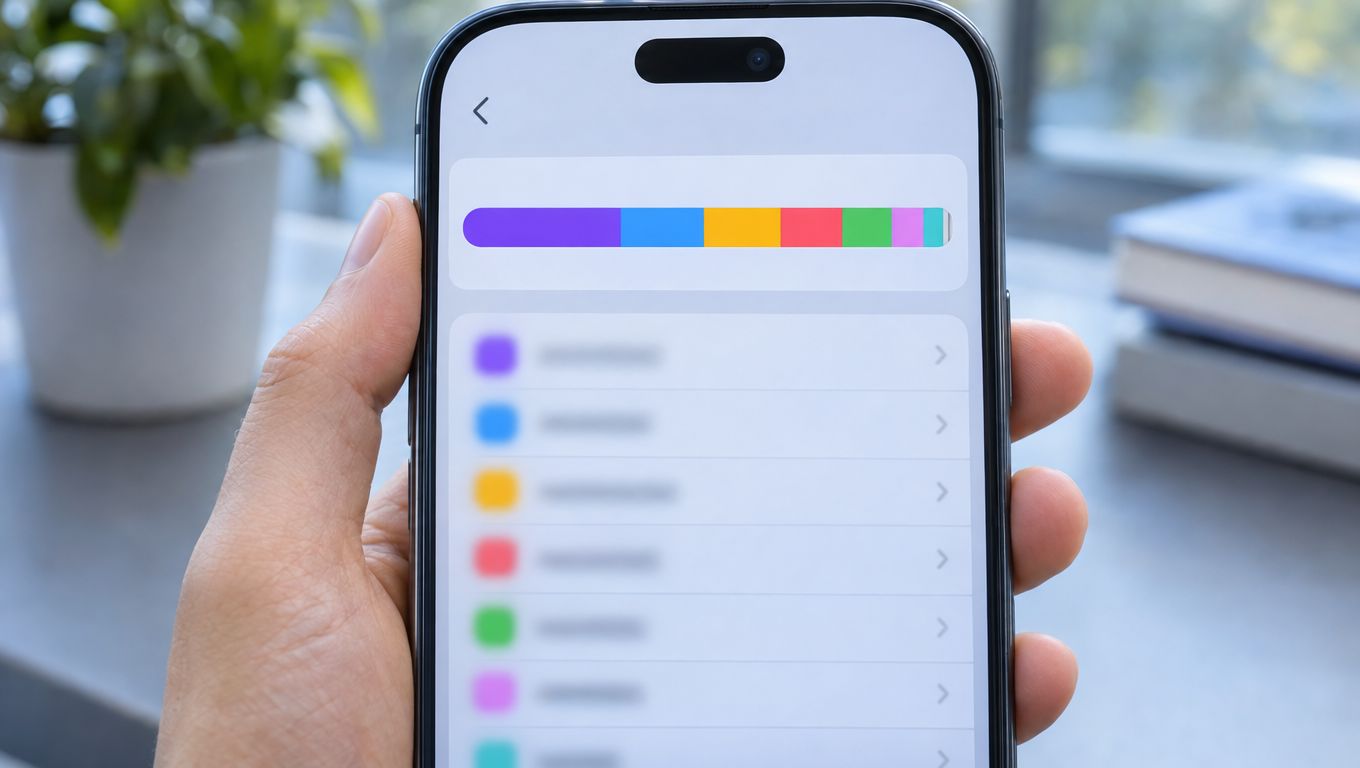
Open Settings and look at the storage breakdown. If your phone is almost full, remove files you genuinely no longer need, uninstall unused apps, or move large videos and photos to a safe backup location.
Low storage can make everyday management more difficult and can prevent downloads, app updates, and other operations from completing properly. Do not delete system files or unfamiliar folders just to make the storage number look better.
3. Update your installed apps
Open the Play Store on Android or the App Store on iPhone and check for pending updates. An app that has not been updated for a long time may not behave properly after a major operating-system change.
Update the apps you use regularly, then check whether the problem continues. If only one app remains slow, look at its own settings and support information rather than changing the entire phone.
4. Check battery usage app by app
Go to Settings and open the battery section. The exact menu names vary by manufacturer, but most modern phones show which apps have used the most battery over a selected period.
Look for an app using an unusual amount of power in the background. If you recognise it and do not need it running constantly, review its background-usage permissions. Avoid restricting essential services or messaging apps without understanding the consequences, because doing so may delay notifications.
On supported Pixel devices, Google recommends keeping Adaptive Battery and battery optimisation enabled. These features learn usage patterns and can limit unnecessary background activity.
5. Let the phone cool down before testing performance
If the phone feels hot, stop demanding tasks and allow it to cool naturally. Remove it from direct sunlight, avoid covering it with bedding or thick materials, and do not run games or stress tests while it is already warm.
Once the temperature has returned to normal, test the same everyday tasks again. A phone that performs normally when cool but slows down under sustained heat may be responding to thermal limits rather than suffering from a permanent software slowdown.
6. Check for another system update
Manufacturers sometimes release follow-up updates to address bugs discovered after a major rollout. Open the system update section in Settings and check whether a newer version is available.
Read the update notes where possible. If the manufacturer identifies a fix for battery drain, app crashes, or performance, that is more useful evidence than installing unofficial software or following an unverified online workaround.
Android and iPhone Updates Do Not Work in Exactly the Same Way
It is tempting to assume that every phone performs the same background tasks after an update, but Android and iOS have different system architectures and manufacturer support processes.
On Android, ART handles application execution and optimisation. Google’s technical documentation explains how background dexopt jobs can run when a device is idle and charging, including work related to updates. Android manufacturers can customise parts of this behaviour, so the experience may differ between a Pixel, Samsung, OnePlus, or another brand.
On iPhone, battery behaviour and app activity are managed through iOS. Apple’s support material provides device-specific troubleshooting for battery and performance issues. If an iPhone becomes slow after an update, check battery health, available storage, and whether a particular app is consuming excessive resources before assuming that the update has permanently reduced performance.
For a closer look at Apple’s latest software changes, see our coverage of the iOS 27.2 update. Android users can also follow the OnePlus 15 Android 17 rollout for device-specific update coverage.
How Long Should You Wait Before Worrying?
There is no official universal countdown that applies to every smartphone. A phone may feel normal shortly after a small update, while a major upgrade or a device with many installed apps may take longer to settle.
Instead of assuming that every phone needs exactly three or seven days, use a simple check-in routine:
| When | What to check | What to do |
|---|---|---|
| First few hours | Heat, battery drain, and basic app behaviour | Use the phone normally and avoid demanding tests if it is hot. |
| After the first night | Whether background activity and battery use have settled | Check battery usage and install pending app updates. |
| After a few days | Persistent lag, overheating, or unusual battery drain | Investigate the apps, storage, and manufacturer updates. |
| If the issue continues | System-wide performance and recurring errors | Contact the manufacturer’s support team or service centre. |
This is a practical troubleshooting schedule, not a guarantee that all post-update issues disappear within a particular number of days. If the phone becomes dangerously hot, repeatedly shuts down, or shows signs of battery swelling, stop using it and seek professional assistance rather than waiting for it to settle.
Should You Factory Reset a Slow Phone After an Update?
A factory reset is sometimes recommended as a universal solution, but it should not be your first move. It removes personal data and installed apps, so you need a verified backup before proceeding. It also cannot repair a defective update, a failing battery, or a hardware fault.
Before considering a reset, try the less disruptive steps: restart the phone, free up storage, update apps, inspect battery usage, and check for a newer system patch. If the manufacturer recommends a reset for a specific issue, follow its official instructions and make sure your photos, contacts, messages, and important files are backed up.
After a reset, the phone may also need time to restore apps and data. Do not judge its performance while downloads and setup tasks are still running.
What You Should Not Do
- Do not install random cleaner apps: Apps promising one-tap speed boosts can add more background activity and may not solve the underlying issue.
- Do not repeatedly clear app data: You may lose downloads, saved preferences, or locally stored information.
- Do not disable system services: Changing unfamiliar Android services or iOS settings can create new problems.
- Do not run benchmarks while the phone is hot: The results may reflect thermal throttling rather than normal performance.
- Do not skip important security updates: A temporary performance concern is not a good reason to ignore security fixes indefinitely.
Final Verdict
A phone feeling slower after a software update does not automatically mean its processor has become weaker or that the update has permanently damaged it. Background optimisation, app compatibility, battery activity, heat, and limited storage can all contribute to the experience.
Start with the simple checks: restart once, make sure there is enough free storage, update your apps, inspect battery usage, and let a hot phone cool down. Then check whether the manufacturer has released a follow-up patch or acknowledged a known issue.
If performance returns to normal, there may have been no lasting problem at all. But if system-wide lag, unusual heat, or severe battery drain continues, do not keep waiting indefinitely. Investigate the specific cause and contact the manufacturer when necessary. The goal is not to make every phone feel faster with a magic setting — it is to identify what actually changed and fix the right problem.
How This Guide Was Put Together
This guide uses platform documentation to explain the technical mechanisms and practical troubleshooting steps. Android’s documentation describes ART and JIT compilation and ART Service background optimisation. Google’s Pixel battery-drain guidance explains why battery use can temporarily increase after an update, while its documentation on Adaptive Battery and battery optimisation explains how supported Pixel devices manage background app activity.
For iPhone users, Apple’s official resources on iPhone battery and performance and managing storage are useful starting points. The exact steps and available features can vary by device model and software version.
Frequently Asked Questions
Does a software update really make phones slower?
It can make a phone feel slower temporarily, but that does not mean every update permanently reduces performance. Background activity, app compatibility, heat, and storage can all contribute. If the slowdown continues, investigate the cause instead of assuming it is normal.
How long should I wait before worrying?
There is no fixed waiting period for every phone. Check whether performance and battery use improve over the first few days. If severe lag, overheating, or unusual battery drain continues, investigate the issue or contact the manufacturer.
Will a factory reset fix a slow phone after an update?
Sometimes, but it is a last resort. A reset removes your data and apps, so make a verified backup first. It will not fix a defective update, a hardware problem, or a failing battery.
Why is my battery draining faster after updating?
The phone may be downloading and optimising software or adjusting background activity. Google confirms that some Pixel devices can use more battery than usual after an update. If the drain continues, check battery usage to identify apps or services responsible.
Should I skip updates to keep my phone fast?
No. Updates can include important security fixes and bug corrections. If an update causes a problem, check for a follow-up patch or the manufacturer’s guidance rather than ignoring security updates indefinitely.
